Is your WordPress site loading too slow? You are not alone. Millions of website owners struggle with the same problem every single day. A slow site does not just frustrate your visitors — it directly hurts your Google rankings and kills your chances of getting organic traffic. That is why WordPress website speed optimization is one of the most important things you can do for your site in 2026. In this complete guide we will walk you through every proven step to make your WordPress site load faster, perform better, and rank higher on Google — starting today.
Why Your WordPress Site Speed Is Killing Your Rankings
Let me tell you something that most bloggers find out the hard way.
You can have the best content on the internet. A beautiful design. A perfectly researched SEO strategy. But if your WordPress site loads slowly — none of that matters. Visitors will leave before they even read your first sentence.
I’ve seen it happen over and over again. A blogger puts months of work into their site, publishes great content, does everything right — and still can’t rank on Google. Then they check their site speed and find out their pages are taking 6 or 7 seconds to load. That’s the real problem.
Here’s what Google has officially confirmed: page speed is a direct ranking factor. Research consistently shows that if your site takes more than 3 seconds to load, over 50% of your visitors will bounce immediately. That means more than half your potential audience is gone before they even see your content.
The good news? How to WordPress website speed optimization is not as complicated as it sounds. With the right steps and the right tools, you can dramatically improve your site speed — even if you have zero technical knowledge.
In this complete guide I’m going to walk you through everything you need to know about WordPress website speed optimization in 2026. From the most impactful changes you can make right now to the best WordPress plugins to make website load faster — it’s all here.
Let’s get started.
Why WordPress Site Speed Matters More Than Ever in 2026
Before we dive into how to WordPress website speed optimization works, let’s understand why this matters so much right now.
Google introduced Core Web Vitals as official ranking signals a few years ago and they’ve only become more important since then. These are three specific measurements Google uses to evaluate your page experience:
LCP (Largest Contentful Paint) — How long does it take for the main content of your page to load? Google wants this under 2.5 seconds.
FID (First Input Delay) — How quickly does your site respond when a visitor tries to interact with it? Google wants this under 100 milliseconds.
CLS (Cumulative Layout Shift) — Does your page content jump around while loading? Google wants a score below 0.1.
If your WordPress site is failing these measurements, Google is actively pushing your pages down in the rankings — regardless of how good your content is.
And it’s not just Google. Real visitors feel site speed too. A one-second delay in page load time can reduce conversions by 7%. For a blog trying to build an audience or generate affiliate revenue, that’s a significant impact.
The bottom line is simple: how to make website load faster wordpress is one of the highest-impact things you can do for your site in 2026. Let’s get into exactly how to do it.
Step 1 — Choose a Fast WordPress Hosting Provider
This is the foundation of how to WordPress website speed optimization and most beginners completely skip it.
Your hosting server is where your website lives. Every single page load starts with a request to your hosting server. If your server is slow, your site will be slow — no matter what else you do.
Think of it this way. You can install every caching plugin available, compress every image on your site, and optimize your database perfectly. But if your hosting server takes 1.5 seconds just to respond to a request, you’re already behind before anything else loads.
What to look for in a fast host:
- Server response time under 200 milliseconds
- SSD storage (much faster than traditional HDD)
- PHP 8.0 or higher support
- Built-in caching at the server level
- Data center locations close to your target audience
For most WordPress blogs targeting a USA audience, SiteGround, Hostinger, or WP Engine are solid choices that won’t bottleneck your speed.
If you’re already on a budget host and can’t switch right now, the rest of this guide will still help you significantly. But upgrading your hosting is the single biggest speed improvement most slow sites can make.
Step 2 — Install a WordPress Caching Plugin
This is the most important step in how to make website load faster wordpress — and it’s completely free.
Here’s how WordPress works by default. Every time someone visits your site, WordPress runs a series of database queries to build the page from scratch. It fetches your content, your theme files, your plugin data, and assembles it all together before sending it to the visitor. This process takes time — and it happens for every single visitor on every single page load.
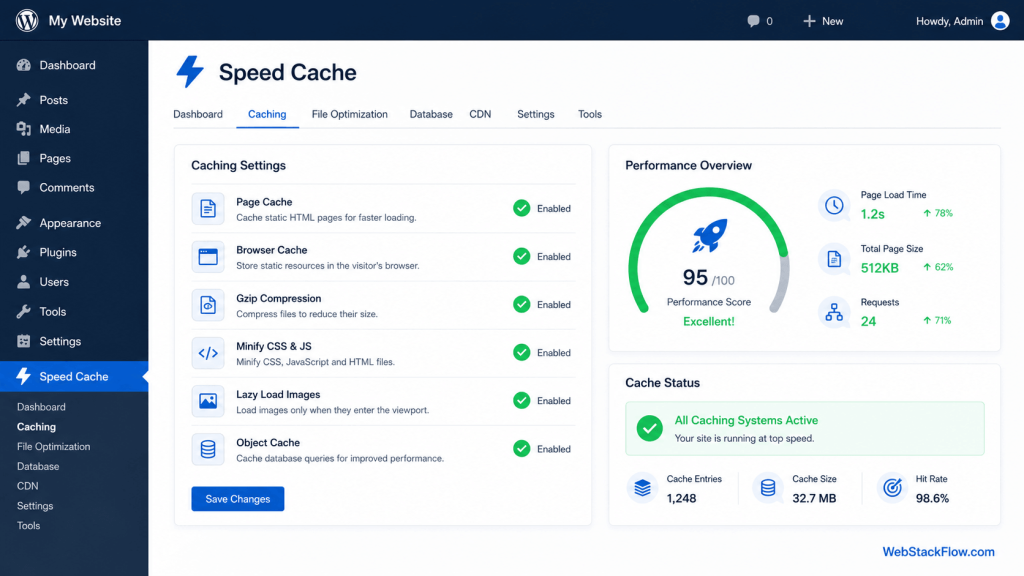
Caching solves this problem by saving a pre-built version of your pages. When a visitor arrives, instead of rebuilding the page from scratch, WordPress just serves the saved version. This dramatically reduces load time.
Best WordPress Plugin to Make Website Load Faster — Caching Options
WP Rocket — The best premium caching plugin available. It’s fast, easy to set up, and includes page caching, browser caching, GZIP compression, and database optimization all in one. If you can invest in one premium plugin for speed, this is the one. Starts at $59/year.
W3 Total Cache — The most popular free caching plugin for WordPress. Powerful but requires more configuration than WP Rocket. Not as beginner-friendly but completely free and very effective when set up correctly.
LiteSpeed Cache — If your hosting uses LiteSpeed servers (like Hostinger), this free plugin works at the server level and delivers exceptional results. One of the best wordpress plugin to make website load faster options available — and it’s completely free.
WP Super Cache — Simple, lightweight, and free. Developed by Automattic (the company behind WordPress). Great for beginners who want a straightforward caching solution without complicated settings.
My recommendation: If you’re on Hostinger, use LiteSpeed Cache — it’s free and incredibly effective. For any other host, WP Rocket is worth the investment. If budget is tight, W3 Total Cache is a solid free alternative.
Step 3 — Optimize and Compress Your Images
Images are almost always the biggest reason for a slow WordPress site. A single unoptimized image can be 3-5 MB in size. If your page has 10 of those, you’re asking visitors to download 30-50 MB just to see one page. That’s a disaster for load time.
How to make website load faster tips for images:
Compress images before uploading. Use TinyPNG.com or Squoosh.app to reduce file size before you even upload to WordPress. A 3 MB image can often be compressed to under 200 KB with virtually no visible quality difference.
Use WebP format. WebP is a modern image format that’s significantly smaller than JPEG or PNG while maintaining the same visual quality. Google developed it specifically for faster web performance. Most modern browsers support WebP in 2026.
Implement lazy loading. Lazy loading means images only load when a visitor scrolls down to them — instead of loading all images at once when the page first opens. WordPress has lazy loading built in since version 5.5, but a good optimization plugin enhances this further.
Use an image optimization plugin. Plugins like Imagify, ShortPixel, or Smush automatically compress images as you upload them and can bulk-optimize your existing image library.
Step 4 — Use a Content Delivery Network (CDN)
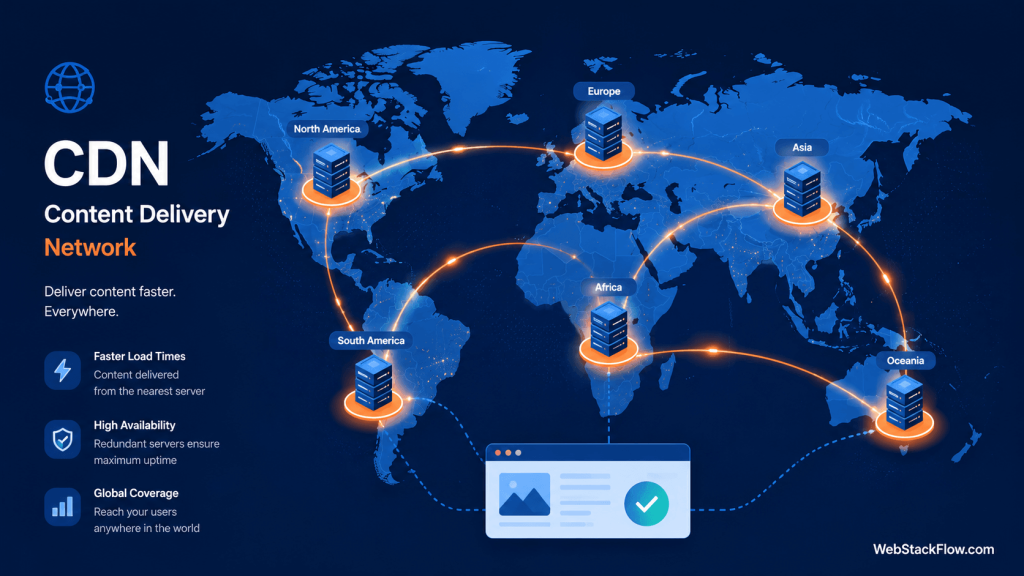
A CDN is one of the most effective how to make website load faster tips for sites targeting international audiences — and the best option is completely free.
Here’s the problem a CDN solves. Your hosting server is in one physical location — let’s say New York. When someone in London visits your site, their request has to travel all the way across the Atlantic to New York, get your files, and travel back. That physical distance adds real loading time.
A CDN solves this by storing copies of your site’s static files (images, CSS, JavaScript) on servers distributed around the world. When someone in London visits your site, they get files from a nearby European server instead of from New York. Much faster.
Cloudflare is the best free CDN available. It’s what I recommend for every WordPress site — regardless of budget. Here’s why it’s perfect for how to WordPress website speed optimization:
- Completely free plan that covers most sites
- Servers in over 200 cities worldwide
- Built-in DDoS protection
- Free SSL certificate
- Additional caching layer on top of your hosting
- Easy setup through your Namecheap domain settings
You’ve already set up Namecheap for your domain — connecting Cloudflare is straightforward and takes about 20 minutes.
Step 5 — Minimize CSS, JavaScript, and HTML Files
Every time your WordPress site loads, it has to download dozens of CSS and JavaScript files. Each file is a separate request to the server. More requests means slower loading.
Minification removes unnecessary spaces, line breaks, and comments from these files — reducing their size without affecting how they work. Combining multiple files into one reduces the number of server requests.
Most good caching plugins handle this automatically. WP Rocket, LiteSpeed Cache, and W3 Total Cache all include minification and file combination settings.
Important warning: Be careful with JavaScript combination — it can sometimes break certain plugins or theme features. Always test your site thoroughly after enabling these settings and check that everything still works correctly.
Step 6 — Optimize Your WordPress Database
Over time your WordPress database collects a lot of unnecessary data — post revisions, deleted comments, expired transients, and orphaned data from plugins you’ve removed. All of this bloats your database and slows down queries.
Regular database optimization keeps things clean and fast.
WP-Optimize is the best free plugin for this job. It cleans your database, removes unnecessary data, and can be set to run automatically on a schedule. Install it, run a cleanup, and set it to clean weekly automatically.
Keeping your database clean is one of the most overlooked how to make website load faster wordpress steps — but it makes a real difference on older sites with lots of content.
Step 7 — Choose a Lightweight WordPress Theme
Your theme has a massive impact on your site speed. Some popular WordPress themes are beautifully designed but load dozens of unnecessary scripts and stylesheets that slow your site down significantly.
Fast lightweight themes to consider:
GeneratePress — One of the fastest WordPress themes available. Under 30 KB in size. Highly customizable and SEO friendly. Has a free version and a premium version at $59.
Kadence — Another excellent lightweight theme with a great free version. Very fast, beginner-friendly, and works perfectly with page builders.
Astra — Extremely popular lightweight theme with a generous free version. Used by over 2 million websites. Loads in under half a second on good hosting.
If your current theme is heavy and slow, switching to one of these can immediately improve your Core Web Vitals scores significantly.
Step 8 — Limit and Audit Your WordPress Plugins
Every plugin you install adds code to your site. Some plugins are lightweight and barely affect performance. Others load multiple scripts and stylesheets on every single page — even when they’re not needed on that page.
How to make website load faster tips for plugins:
- Audit your plugins regularly. Deactivate and delete any you’re not actively using.
- Never install two plugins that do the same job. One good SEO plugin. One good caching plugin. One good security plugin. That’s all you need.
- Check plugin performance with Query Monitor — a free plugin that shows you exactly which plugins are slowing down each page.
- Avoid pagebuilder plugins unless absolutely necessary. Heavy pagebuilders like Divi or some configurations of Elementor can significantly impact speed.
A good rule of thumb: every plugin you add should have a clear purpose that justifies its performance cost.
Step 9 — Enable GZIP Compression
GZIP compression reduces the size of files your server sends to visitors’ browsers. It works like a zip file — compressing data before sending it, then decompressing it in the browser. This can reduce file sizes by 60-80%.
Most good hosting providers and caching plugins enable GZIP compression automatically. Check your caching plugin settings to make sure it’s enabled. You can also verify GZIP is working on your site using the free tool at GZIPtest.com.
Step 10 — Update WordPress, Themes, and Plugins Regularly
This one sounds obvious but it’s genuinely important for how to WordPress website speed optimization.
Every major WordPress update includes performance improvements. The same goes for quality themes and plugins. Running outdated versions means you’re missing speed improvements that the developers have already built for you.
Enable automatic updates for minor WordPress versions. Check for theme and plugin updates weekly. And always test on a staging environment before pushing major updates live — especially if your site is generating traffic or revenue.
Best WordPress Plugins to Make Website Load Faster
Here’s a quick reference of the best tools for WordPress website speed optimization:
| Plugin | Purpose | Price |
|---|---|---|
| WP Rocket | All-in-one caching | $59/year |
| LiteSpeed Cache | Caching (LiteSpeed servers) | Free |
| W3 Total Cache | Caching | Free |
| Imagify | Image optimization | Free/Paid |
| ShortPixel | Image optimization | Free/Paid |
| Cloudflare | CDN + Security | Free |
| WP-Optimize | Database cleanup | Free |
| Query Monitor | Performance debugging | Free |
| GeneratePress | Lightweight theme | Free/Paid |
How to Test Your WordPress Site Speed
After implementing these optimizations, you need to measure your results. These free tools will show you exactly how fast your site is and what still needs improvement:
Google PageSpeed Insights — The most important tool. Shows your Core Web Vitals scores and specific recommendations directly from Google.
GTmetrix — Detailed waterfall analysis showing exactly which files are slowing your site down. Very useful for diagnosing specific problems.
Pingdom — Simple speed test with a clear grade. Good for quick checks and monitoring over time.
Run each test at least three times and take the average score. A single test can give misleading results due to server fluctuations.
Conclusion & Next Steps
Now you know exactly how to WordPress website speed optimization works — from hosting and caching to images, CDN, and database cleanup.
Here’s a quick action plan to get started right now:
First, test your current speed on Google PageSpeed Insights so you know your starting point. Then install a caching plugin — LiteSpeed Cache if you’re on Hostinger, WP Rocket if you’re on any other host. Next, compress your images and set up Cloudflare CDN. Finally, switch to a lightweight theme if your current one is heavy.
Do these four things and you’ll see a dramatic improvement in your how to make website load faster wordpress results within days.
Remember — every second you shave off your load time means more visitors staying on your site, better Google rankings, and more traffic over time. Site speed is not a one-time fix. It’s an ongoing part of running a successful WordPress blog in 2026.
Start today. Your rankings will thank you. 🚀