
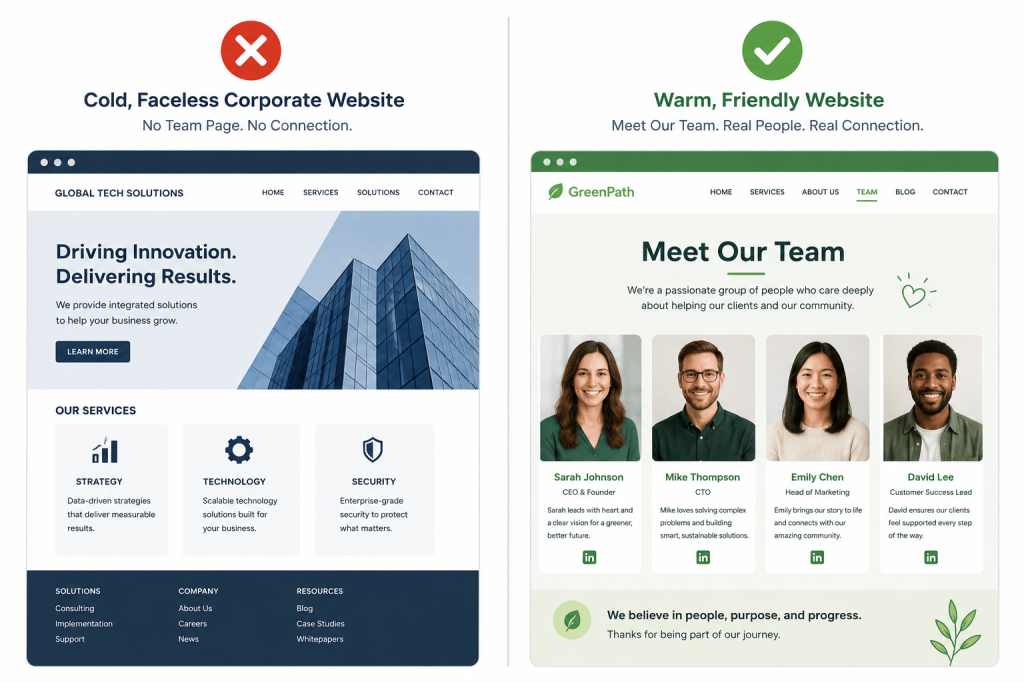
Here’s something I’ve noticed after reviewing hundreds of WordPress websites: the team page is almost always either missing or completely forgettable.
Either there’s no team page at all, or it’s a sad grid of stock photos with names and generic job titles that tell you absolutely nothing about the real people behind the brand.
That’s a problem — because if there’s one page on your site that can turn a skeptical stranger into a paying customer, it’s your team page.
In this guide, I’m going to show you exactly how to create a meet the team page in WordPress from scratch — step by step, with four different methods, real examples, expert design tips, and everything in between. Whether you’re a complete beginner or someone who’s done this before but wants to do it better, this guide has you covered.
Why Your WordPress Site Needs a Meet the Team Page
Let me put this simply: people buy from people they trust.
When a first-time visitor lands on your website, they’re subconsciously asking one question — “Are these real people I can trust?” A well-built meet the team page in WordPress answers that question before they have to ask it.
Here’s what the research says. According to a 2023 Edelman Trust Barometer, 88% of B2B buyers say trust is a top factor in purchasing decisions. And Nielsen Norman Group research shows that authentic team photos — real headshots of real people, not stock photos — meaningfully improve how credible a website feels and can directly boost conversion rates.
Think about your own behaviour. When you’re considering hiring a service provider or buying from a company you’ve never heard of, where do you go? Most people head straight to the team or about page to see who is behind the brand.
Here’s what a great meet the team page in WordPress can do for your business:
| Benefit | What It Means |
|---|---|
| 📉 Lower bounce rates | Visitors stay longer when they feel a personal connection |
| ⏱️ Higher time-on-page | Real stories and faces keep people reading |
| 💬 More conversions | Seeing a real team builds the confidence to click “Contact” |
| 🏆 Stronger brand credibility | Looks more established and trustworthy than faceless sites |
| 🔍 Better SEO | Unique, valuable content that supports your site’s E-E-A-T score |
If your WordPress site is missing this page right now, you’re leaving real trust — and real revenue — on the table.
What Should You Include on a Meet the Team Page?
Before you open your WordPress dashboard, let’s get clear on what actually belongs on this page. Not all team pages are memorable. The ones that work follow a simple but intentional structure.
Here are the core elements every meet the team page in WordPress should have:
✅ 1. Real, Professional Headshots
This is non-negotiable. Use actual photos of your actual team — not stock images. Visitors can spot a stock photo immediately, and it instantly kills trust. You don’t need a professional photographer; a well-lit smartphone photo with a consistent background works perfectly.
Best practices for team photos:
- Use square format: 400×400px minimum for crisp display on all screens
- Keep backgrounds consistent across all team members (plain wall, office, outdoors — pick one)
- Save images as .jpg or .png and compress them before uploading (use TinyPNG)
- Always add descriptive alt text: “[First Name Last Name], [Job Title] at [Company Name]”
✅ 2. Full Name and Clear Job Title
Simple but important. Keep titles consistent and plain. “Senior Content Strategist” is better than “Content Ninja” unless that’s genuinely your brand voice. Limit name and title to two lines max to keep the layout clean.
✅ 3. Short, Personality-Packed Bio (40–80 Words)
This is where most team pages fail completely. Bios that say “John is a results-driven professional with a passion for excellence” are meaningless — and everyone’s seen that line a thousand times.
A bio format that actually works:
“[Name] leads our [team/role], helping [specific outcome]. With [X] years in [field], they bring [unique skill or perspective]. Outside work, you’ll find them [relatable human detail].”
For example:
“Maria heads our customer success team, making sure every client gets real results — not just a nice onboarding call. With 8 years in SaaS support, she’s seen it all. On weekends, she’s usually hiking or hunting for the perfect bowl of ramen.”
See the difference? That bio makes you feel like you know Maria already.
✅ 4. Social Media Links
LinkedIn is essential for professional credibility. Add Twitter/X, GitHub, Dribbble, or other platform links depending on your industry. Always set them to open in a new tab so visitors don’t accidentally leave your site.
✅ 5. A Brief Team Introduction Section
Add a short 2–3 sentence paragraph at the very top of the page before the individual profiles. Explain who your team is, what drives your company, and what kind of culture you’ve built. This gives visitors context and sets the emotional tone before they dive into individual bios.
✅ 6. A Clear Call-to-Action at the Bottom
Your team page should never be a dead end. Add a CTA after the profiles — something like “Want to work with us? Let’s talk.” Link it to your contact page, a booking form, or a careers page if you’re hiring. A passive page visit becomes an active lead.
How to Create a Meet the Team Page in WordPress : 4 Methods
Now let’s get into the actual how-to. There are four solid ways to build a meet the team page in WordPress, and I’ll walk you through each one so you can choose the right fit for your situation.
🏆 Method 1: Using a Page Builder Plugin (Best for Beginners)
This is the method I recommend for most people. A drag-and-drop page builder like Elementor, SeedProd, Beaver Builder, or Divi lets you visually design your team page in real time — no code, no guesswork.
Here’s the full step-by-step process using Elementor (which has a powerful free version):
Step 1: Install Your Page Builder
Go to your WordPress dashboard → Plugins → Add New. Search for “Elementor,” click Install Now, then Activate.
💡 Quick tip: The free version of Elementor includes enough widgets to build a professional team page. You don’t need to upgrade unless you want advanced features.
Step 2: Create a New Page
Go to Pages → Add New. Give your page a title — “Meet the Team,” “Our Team,” or “The People Behind [Your Brand Name]” all work well.
Click the Edit with Elementor button to open the visual editor.
Step 3: Choose a Template or Start Fresh
Elementor will show you a library of pre-built templates. Click the folder icon and search for “team” to see ready-made team page layouts. Pick one that’s close to your vision, import it, and then customize it.
Starting from a template saves hours. Even if you change everything, it gives you a structure to work from.
💡 Quick tip: Don’t pick a template based on colors or fonts — those are easy to change. Focus on whether the layout and structure feel right for your team size.
Step 4: Add the Team Member Widget
In the Elementor widget panel on the left, search for “Team Member.” Drag it onto your page canvas.
You’ll see a placeholder profile appear on the right. Now it’s time to fill it in with real information.
Step 5: Customize Each Team Member Card
Click on a Team Member widget to open its settings panel. Here you can add:
- Photo — upload directly from your computer or choose from your media library
- Name — the person’s full name
- Job Title — their role at the company
- Short Bio — 2–3 sentences about them
- Social Icons — LinkedIn, Twitter, email, GitHub, etc.
You can also customize the visual design here: image shape (circle, rounded square, or square), text alignment, font sizes, and color scheme.
Step 6: Set Up Your Team Grid Layout
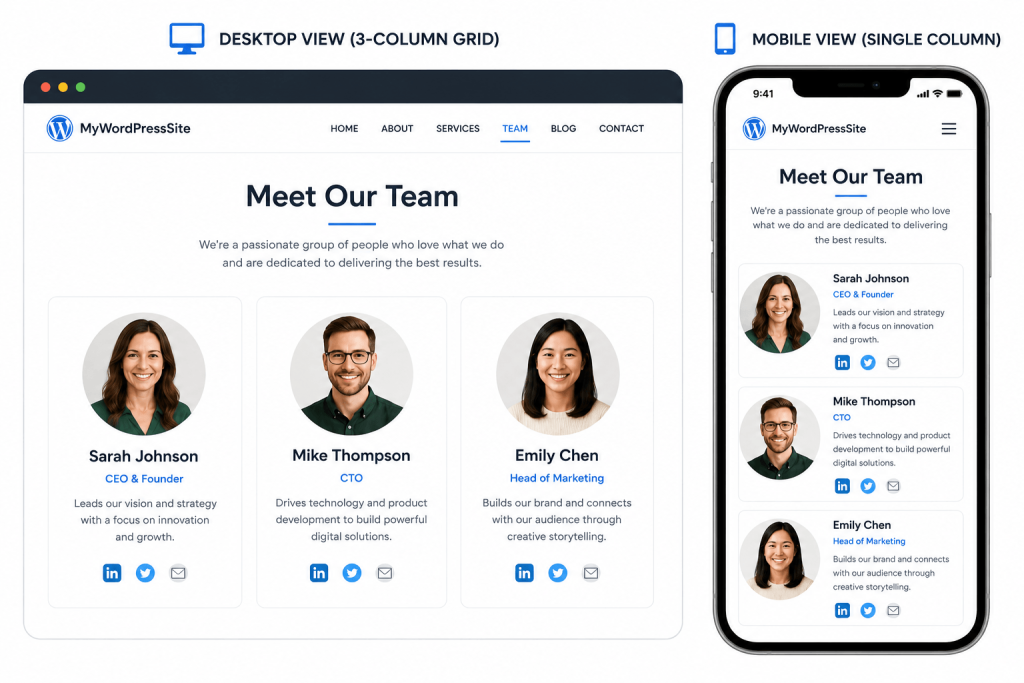
To show multiple team members side by side, use Elementor’s Columns or Loop Grid feature (in Pro). For most people, the simple Columns widget works fine:
- 3 columns → best for teams of 3–9 people
- 4 columns → great for larger teams where you want more on screen
- 2 columns → works well if bios are longer and need more space
Duplicate your team member widget and update the content for each person. This is much faster than rebuilding from scratch each time.
| Team Size | Recommended Layout |
|---|---|
| 3–6 people | 3-column grid |
| 7–12 people | 3 or 4-column grid with 2–3 rows |
| 13+ people | Filtered layout by department, or 4-column grid |
Step 7: Preview on Mobile and Fix What’s Broken
Switch to the mobile preview mode in Elementor’s bottom toolbar. This is where most people discover their 3-column layout looks terrible on a phone.
In the Columns widget settings, switch to the mobile view and change the column count to 1 so profiles stack vertically. Make sure photos aren’t too large and text isn’t cramped.
💡 Quick tip: Test on a real phone too, not just the preview. Sometimes the preview and reality differ slightly.
Step 8: Publish Your Team Page
When you’re happy with how everything looks, click Publish in the top right corner of the Elementor editor. Visit your live page and walk through it like a first-time visitor would.
Ask yourself: Does it load fast? Is it easy to scan? Do the bios feel human? Is there a clear next step at the bottom?
If yes — you’re done. Congratulations, you have a team page that actually works.
🔌 Method 2: Using a Dedicated Team Members Plugin
If you have a frequently changing or larger team and want a more structured, database-driven approach, there are plugins built specifically for managing team member profiles.
Popular options:
| Plugin | Cost | Best For |
|---|---|---|
| Team Members (WordPress.org) | Free | Small teams, simple grid |
| WP Team Pro | ~$29 | More layouts, custom fields |
| Our Team Showcase | Free + Pro | Larger teams, department filtering |
| Simple Team | Free | Lightweight, fast-loading pages |
How to set it up:
- Go to Plugins → Add New, search for your chosen plugin, install and activate it
- A new “Team Members” menu item will appear in your dashboard sidebar
- Click Add New to create a profile for each team member — fill in name, photo, bio, role, and social links
- Customize the layout in the plugin’s settings (grid, card, carousel, list view)
- Copy the shortcode the plugin gives you (like
[our_team]) - Create a new page, paste the shortcode, and publish
Why this method is great: Every profile is stored as its own record in your WordPress database. This means you can display the same team roster on multiple pages using shortcodes, and updating one profile updates it everywhere at once. It’s the most scalable method for teams that change regularly.
📝 Method 3: Using the Built-in WordPress Block Editor (Free, No Plugins)
Don’t want to install anything extra? You can absolutely build a solid meet the team page in WordPress using just the native Gutenberg block editor that comes with every WordPress installation.
Here’s a clean, step-by-step approach:
Step 1: Go to Pages → Add New and give it a title.
Step 2: Add a Columns block and choose your layout (2 or 3 columns depending on team size).
Step 3: Inside each column, add these blocks stacked in order:
- Image block → team member headshot
- Heading block (H3) → their full name
- Paragraph block → job title (bold) + 2–3 sentence bio below
- Social Links block → LinkedIn, Twitter, email icons
Step 4: Select all the blocks in one column, click the three-dot menu, and choose Group. Then duplicate that group for each additional team member.
Step 5: Use the right-side block settings to adjust spacing, image border radius, text color, and background color. Modern WordPress themes with Full Site Editing give you even more styling control.
💡 Quick tip: The free Kadence Blocks plugin adds a proper “Team Member” block to Gutenberg without a full page builder. It’s lightweight and works beautifully with almost any WordPress theme.
This method works well for teams of up to 8 people. For larger teams, a plugin or page builder will save you significant time.
💻 Method 4: Custom Development (For Developers)
If you’re a developer or working closely with one, a fully custom implementation gives you complete control over every aspect of your WordPress team members page.
The typical approach:
- Register a custom post type called
team_memberusingregister_post_type()in yourfunctions.phpfile - Add custom fields for photo, bio, title, department, and social links using Advanced Custom Fields (ACF) or Meta Box
- Create a custom archive template (
archive-team_member.php) and optionally individual profile templates - Style everything with your own CSS — no constraints from a theme or plugin
Use this method when you need:
- Filtering by department, location, or seniority level
- Individual SEO-optimized profile pages for each team member
- Deep integration with a custom WordPress theme or headless CMS setup
- More than 30–40 staff members with complex display requirements
For most businesses, this is overkill. But if you’re building something at scale, it’s the most powerful and performant option available.
5 Real-World Team Page Examples Worth Studying
Looking at what great companies have built will save you hours of guessing. Here are five real examples that each take a different — and effective — approach:
1. Awesome Motive — Team Integration Without a Separate Page
Instead of a dedicated standalone team page, Awesome Motive weaves short team introductions and group photos directly into their About page. The result feels natural and genuine, showing their global, remote-first culture without any forced corporate polish.
What you can steal: If your team is large and distributed, consider integrating team highlights into your About or Home page instead of — or in addition to — a standalone team page.
2. Atlassian — Two-Tiered Leadership Structure
Atlassian separates their leadership team from their board of directors with a clean two-section layout. Each leadership headshot has a hover effect that reveals more info and social links. The board section uses smaller images with direct LinkedIn links.
What you can steal: Organize your team page into sections (Leadership, Core Team, Advisors) so visitors can quickly find who they’re looking for.
3. Digital Marmalade — Interactive Hover Bios
Each team member card flips on hover to reveal a fun tabbed bio with sections for their professional role, personal interests, and quirky “superhero” traits. It’s playful but polished, and it perfectly matches their creative agency brand.
What you can steal: A hover effect that reveals a secondary fun photo or extra bio details adds personality and keeps visitors curious without cluttering the default view.
4. Etsy — Community-Scale Team Photography
Etsy features a massive visual collage of real employee photos with subtle hover highlights. It’s simple but it communicates scale, authenticity, and a genuine people-first culture at a glance.
What you can steal: If you have a large team, a photo collage or mosaic layout creates a powerful sense of community that a grid of isolated headshots never can.
5. Humaan — Animated GIFs and Genuine Personality
Every profile at Humaan uses an animated GIF instead of a static photo, paired with short, witty bios. It’s immediately memorable and perfectly represents their creative, playful brand.
What you can steal: Think about what visual treatment would feel authentic to your brand personality. A law firm should not copy Humaan — but a creative agency absolutely should consider something similarly bold.
Common Mistakes That Ruin Team Pages (Avoid These)
I’ve seen hundreds of WordPress team pages, and the same problems keep appearing. Here’s what to avoid:
❌ Using stock photos instead of real ones. Visitors detect stock photos instantly. Real photos — even imperfect ones — build more trust than the most polished stock images. No exceptions.
❌ Writing bios that sound like a job listing. “Dynamic professional with a passion for excellence” is meaningless. Write bios that sound like a real person wrote them about a real person they actually like.
❌ Never updating the page. Nothing hurts credibility faster than a team page that still shows people who left two years ago, or is missing half the current team. Review it every three months.
❌ Making bios wildly different lengths. If one person has 20 words and another has 200, the page looks uneven and rushed. Agree on a length (50–70 words works well) and make everyone stick to it.
❌ Forgetting mobile. A large portion of your visitors are on phones. If your 4-column grid looks terrible on mobile, that’s a real credibility problem. Always test on actual devices.
❌ No call-to-action at the end. Your team page is not just an informational page — it’s part of your conversion funnel. Always give visitors a clear next step after they’ve finished reading.
❌ Skipping image compression. A team page with 15 uncompressed headshots can easily be 10MB+ and load in 8+ seconds. Use TinyPNG or ShortPixel to compress every image before uploading.
SEO Tips for Your WordPress Team Page
Most people skip this section entirely — which means following these tips puts you ahead of the majority of your competitors.
Use a keyword-rich title and H1. Something like “Meet the [Company Name] Team — The People Behind [What You Do]” works naturally and includes relevant search terms.
Write unique bio content for every person. Google values non-repetitive, unique content on a page. Don’t use the same bio structure for all 10 team members.
Add alt text to every image. Format: “[Full Name], [Job Title] at [Company Name].” This helps screen readers, improves accessibility, and gives search engines useful context.
Implement Person schema markup. The Person schema type on Schema.org tells Google exactly who each person is — their name, role, employer, and social profiles. This can help team members appear in Google’s knowledge graph.
Link internally from your team page. Connect to blog posts written by your team members, your about page, service pages, and contact page. A well-linked team page distributes authority across your site and gives visitors logical next steps.
Compress and properly size all photos. Target file sizes under 100KB per image. Slow-loading pages hurt both user experience and search rankings.
Final Word: Your Team Page Is Worth the Effort
Here’s what it comes down to: a meet the team page in WordPress is one of the highest-trust pages you can have on your site. It’s the page that turns strangers into people who feel like they already know you — and people who know you are far more likely to buy from you.
You don’t need a fancy design or a professional photographer to make it work. Start with real photos, write honest bios that sound like real people wrote them, add a clear call-to-action, and get it live.
The worst team page is the one that doesn’t exist yet.